> ## Documentation Index
> Fetch the complete documentation index at: https://docs.sg.tuitionable.com/llms.txt
> Use this file to discover all available pages before exploring further.
# Account Settings
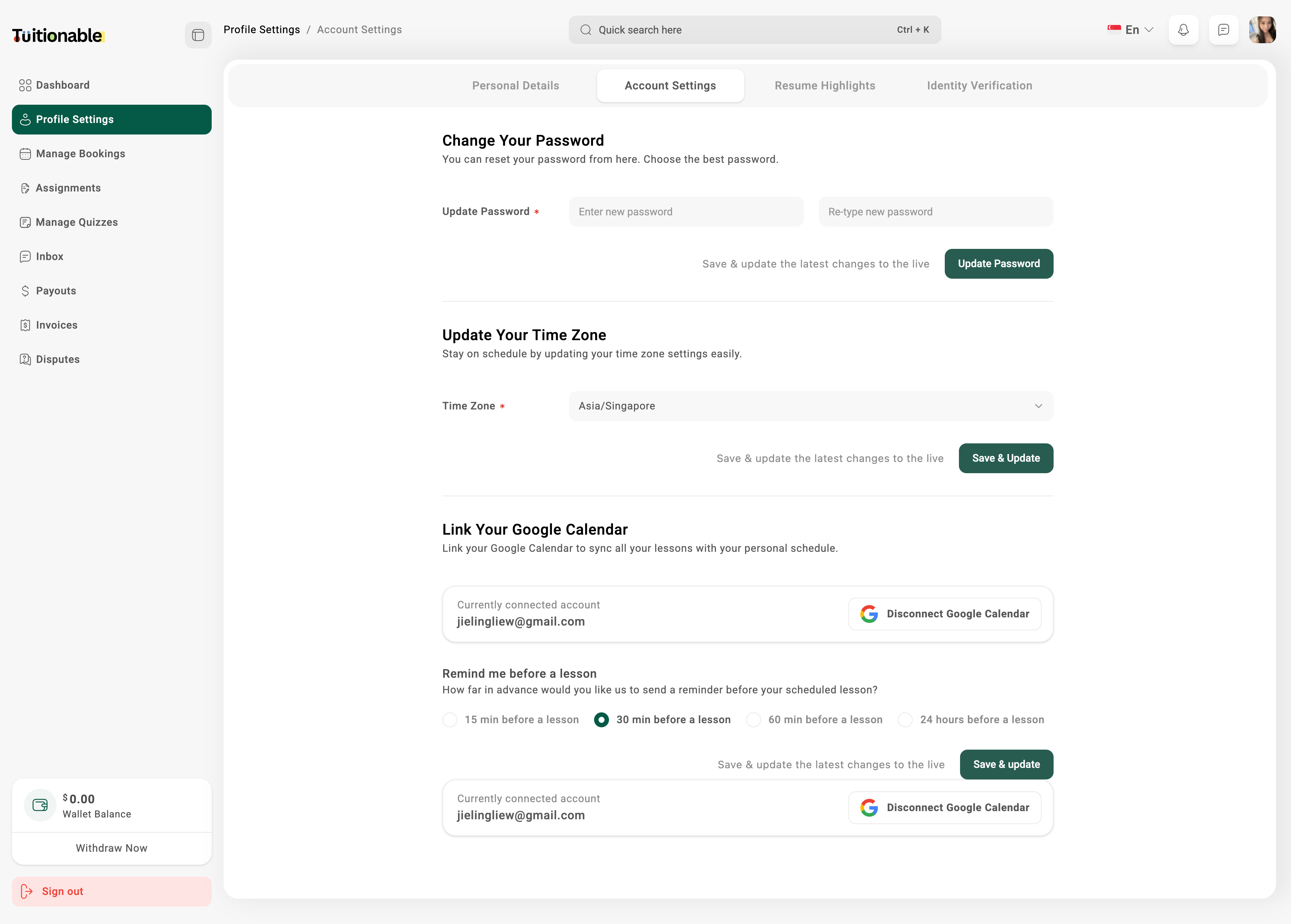
Under **Account Settings**, you can manage password reset, connect your Google Calendar, and set your timezone.
### **Password Reset**
* Navigate to **Profile Settings > Account Settings** from the dashboard.
* Under **Change Your Password**, enter your new password and confirm it.
* Click **Update Password** to save your new password.
### **Connect Google Calendar**
* In the **Account Settings**, locate the **Link Your Google Calendar** section.
* Click on **Connect Google Calendar**.
* Follow the prompts to authenticate and link your Google account.
* Once linked, all your lessons will automatically sync with your personal schedule.
### **Set Timezone**
* Go to **Account Settings** and find the **Update Your Time Zone** section.
* Select your preferred timezone from the dropdown list.
* Click **Save & Update** to apply the changes.
 **Need help?** Speak to our [live chat](https://go.crisp.chat/chat/embed/?website_id=4d0db260-3c95-4794-9aad-48d6a5354a21) or join our telegram [community](https://mintlify.com/community).