> ## Documentation Index
> Fetch the complete documentation index at: https://docs.sg.tuitionable.com/llms.txt
> Use this file to discover all available pages before exploring further.
# How To Edit Session
The **Manage Sessions** feature allows tutors to view, add, and edit their teaching sessions directly from a calendar interface. This ensures that tutors can manage their schedules efficiently and update session details as needed.
* The calendar displays the total sessions available per day.
* Click on the desired date to view the scheduled sessions for that day.
* A list of sessions for the selected date will appear.
* Locate the session you want to edit from the list of subjects.
* Click on the **three dots** ext to the session and select **Edit** option.
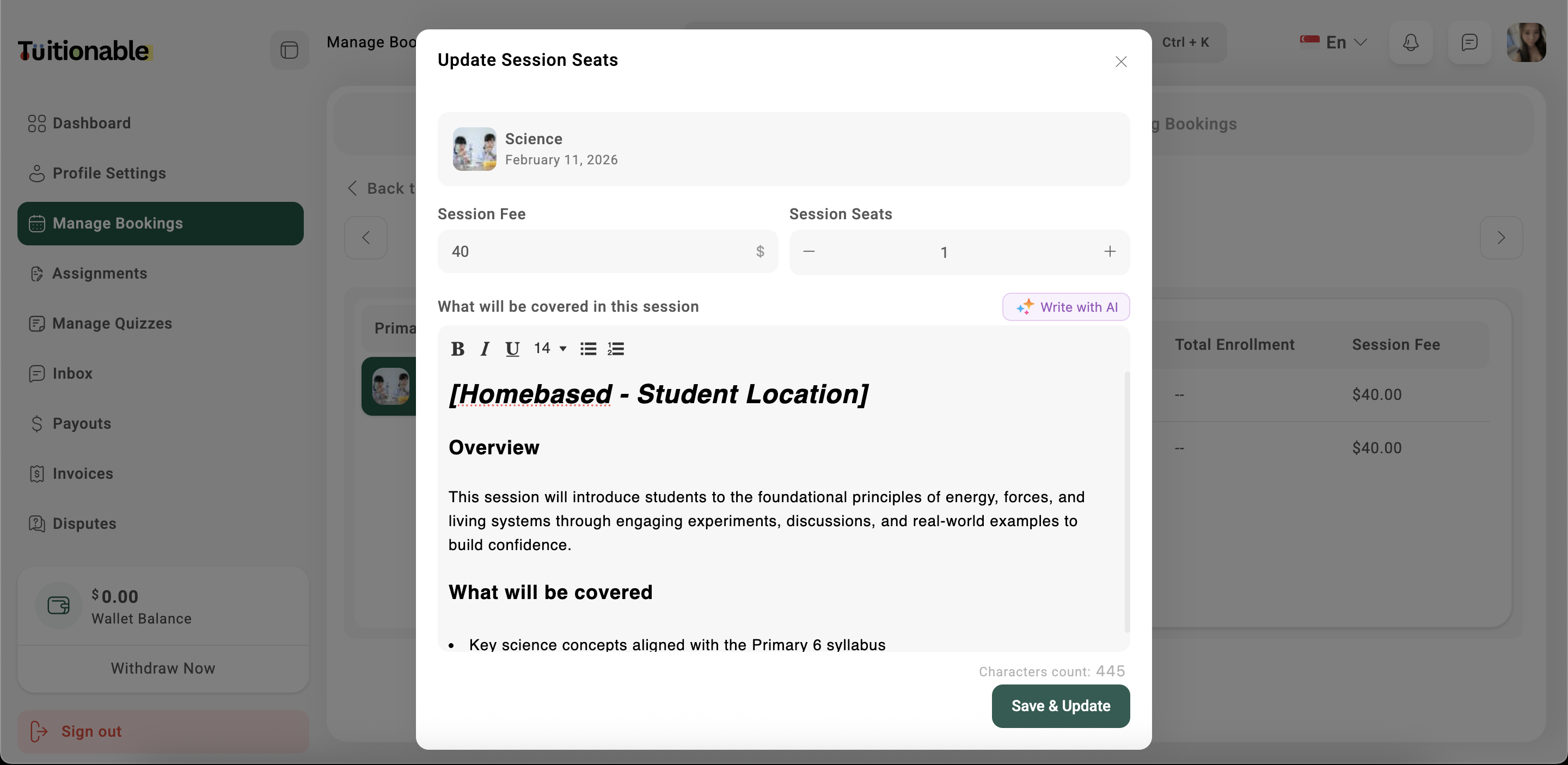
* The session editing interface will open.
* **Session Fee:** Update the price of the session.
* **Session Seats:** Adjust the number of available slots.
* **Session Description:** Use the text editor to revise the content covered in the session.
* Click **Save & Update** to save the changes.
 ##### **Add new slot**
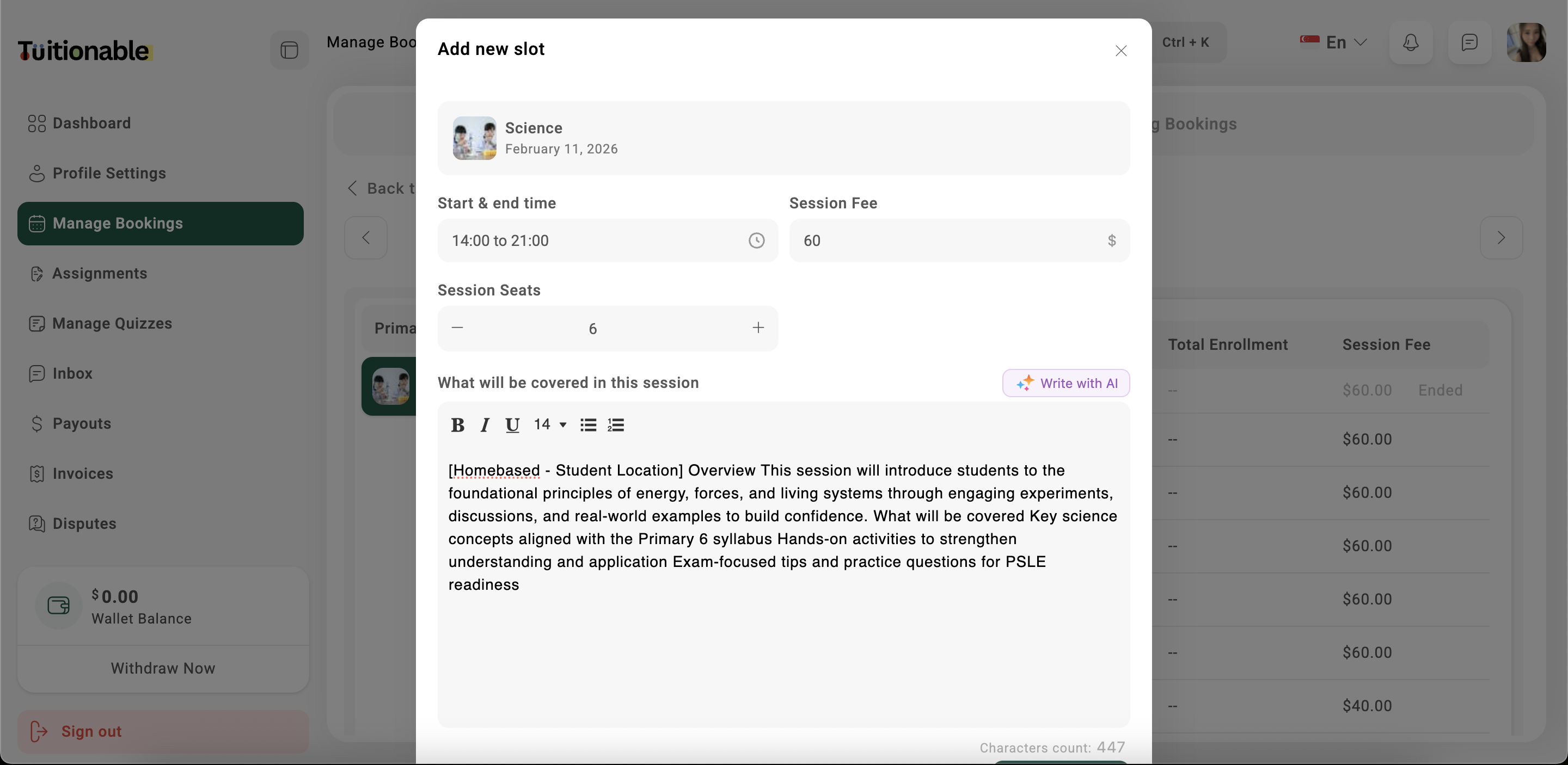
The **Add New Slot** feature enables tutors to add additional time slots for their existing subjects. This functionality is useful for accommodating more students or diversifying session timings for flexibility.
* Navigate to the **Manage Bookings** section in the sidebar.
* Select the **Add New Slot** button located at the top-right corner of the calendar.
* Fill out the **Add New Slot** form:
##### **Add new slot**
The **Add New Slot** feature enables tutors to add additional time slots for their existing subjects. This functionality is useful for accommodating more students or diversifying session timings for flexibility.
* Navigate to the **Manage Bookings** section in the sidebar.
* Select the **Add New Slot** button located at the top-right corner of the calendar.
* Fill out the **Add New Slot** form:
 **Need help?** Speak to our [live chat](https://go.crisp.chat/chat/embed/?website_id=4d0db260-3c95-4794-9aad-48d6a5354a21) or join our telegram [community](https://mintlify.com/community).