> ## Documentation Index
> Fetch the complete documentation index at: https://docs.sg.tuitionable.com/llms.txt
> Use this file to discover all available pages before exploring further.
# Subjects I Can Teach
The **Subjects I Can Teach** section allows tutors to define the subjects they are qualified to teach. Tutors can categorize their subjects based on educational levels (such as Primary School, Secondary School, Junior College, etc.) and add specific subjects under these categories.
### **Adding a Subject Group and Subjects**
1. Navigate to **Manage Bookings > Subjects i can teach**
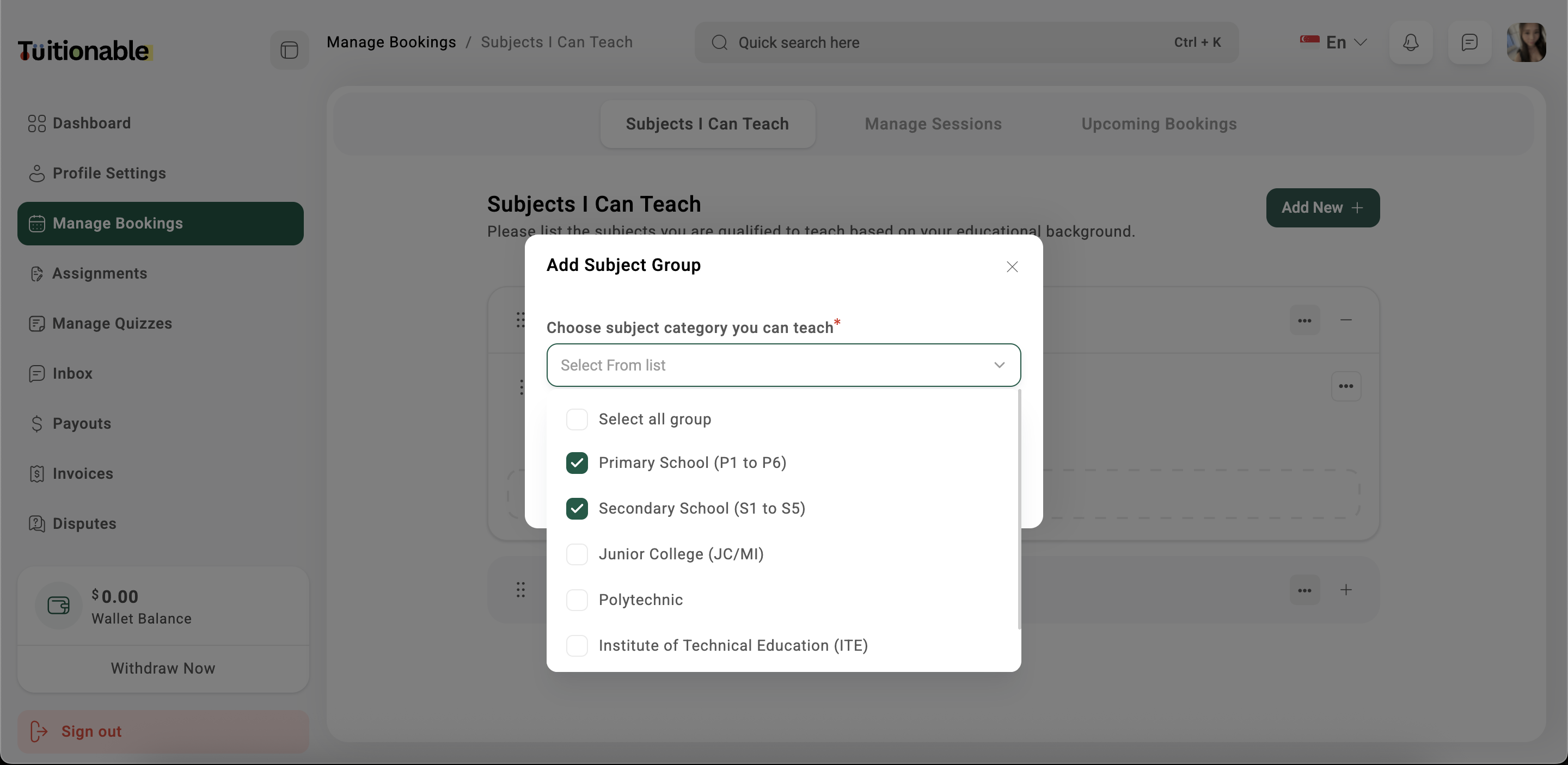
2. Click on the **Add New** button to add a new subject group, such as "Primary School" or "Middle School".
3. Within the subject group, click on **Add New Subject** to define a specific subject.
4. Fill out the **Add Subject** form:
* **Choose subject you can teach:** Select the subject from the dropdown list.
* **Session Price:** Enter the hourly rate for the subject.
* **A Brief Introduction:** Provide a short description of the subject, including key topics covered and the intended audience.
* **Upload Image:** Add an image that represents the subject (optional).
5. Click **Save & Update** to add the subject to your profile.
 ### **Editing or Removing a Subject**
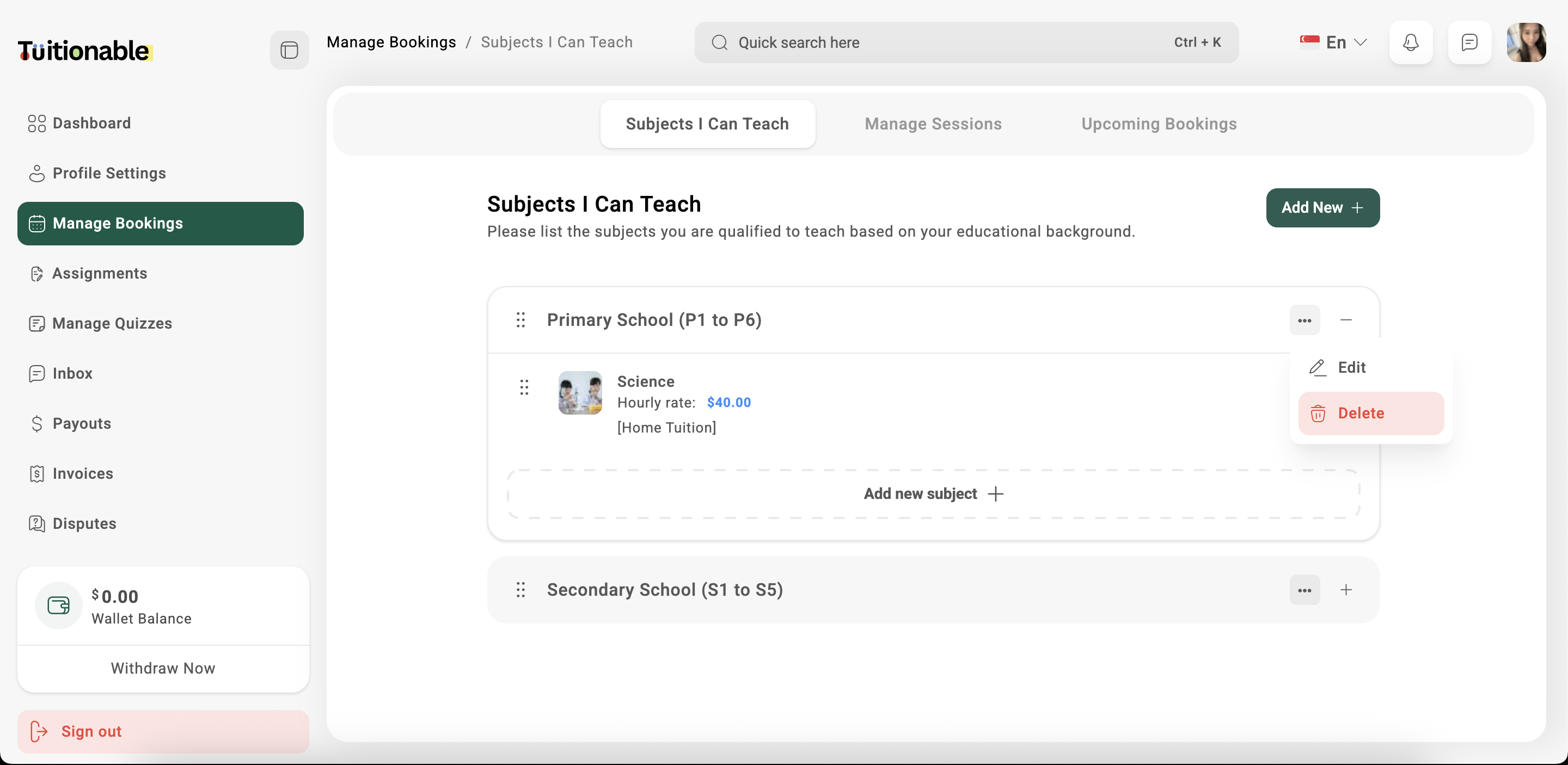
* To edit a subject, click on the **ellipsis (three dots)** next to the subject and choose **Edit**.
* To remove a subject, click on the **ellipsis (three dots)** next to the subject and choose **Delete**.
### **Editing or Removing a Subject**
* To edit a subject, click on the **ellipsis (three dots)** next to the subject and choose **Edit**.
* To remove a subject, click on the **ellipsis (three dots)** next to the subject and choose **Delete**.
 **Need help?** Speak to our [live chat](https://go.crisp.chat/chat/embed/?website_id=4d0db260-3c95-4794-9aad-48d6a5354a21) or join our telegram [community](https://mintlify.com/community).